 EdgeControl
Try it live
Haptic feedback
Optional ticks as you adjust a level on a compatible trackpad.
MADE FOR MAC A NEW SIDE TO YOUR TRACKPAD
A little slide. A quick tap. A smoother day.
Bring volume, brightness, music, and apps
right to your fingertips.
macOS 26+ · Built-in & Magic Trackpad
THE INTERACTIVE PLAYGROUND
Some things make more sense when you try them.
Choose a gesture, then give it a go.
Slide up to brighten your display. Slide down to soften it. Your screen, set to the moment.
An interactive illustration.
Your Mac settings stay unchanged.
YOUR TRACKPAD. YOUR RULES.
A music shortcut in the corner? Apps along the top?
Give every edge a purpose that feels like you.
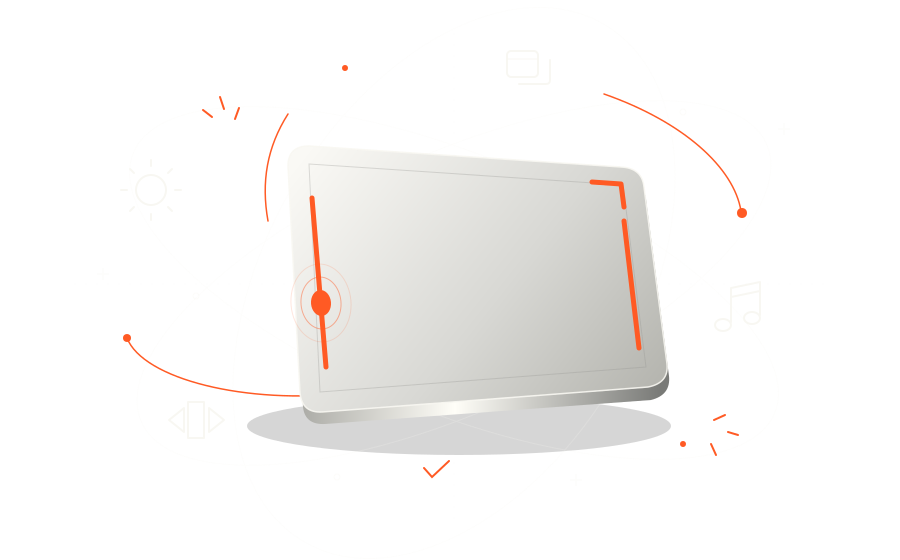
Four edges. Four corners. One familiar surface.
THREE WAYS TO ACTIVATE A CORNER
One light tap activates a corner shortcut.
Choose a gesture to see it on the trackpad above.
Assign an action to any zone in the Mac app, or leave it off.
FIND YOUR FEEL
Optional ticks as you adjust a level on a compatible trackpad.
Keeps your pointer in place while you use a trackpad edge.
Explore here. Set up your gestures in EdgeControl on your Mac.
LESS FRICTION. MORE FLOW.
Keep your focus on what matters.
Let your fingertips handle the little things.
SMALL APP. THOUGHTFUL DETAILS.
Native controls, a quiet menu bar home,
and just enough customization.
Adjust volume and brightness, open your hotspot map, or pause gestures for a moment.
Set edge width and sensitivity. Add optional haptic ticks on a compatible trackpad.
Freeze the pointer while you use an edge, so a quick adjustment keeps you in your flow.
A Mac running macOS 26 or later and a built-in trackpad or supported Magic Trackpad. EdgeControl is designed around trackpad gestures; Magic Mouse is not supported.
You have four edges and four corners. Volume and display brightness work on the left and right edges. Keyboard brightness and App Switcher work on any edge. Previous App, mute, and music actions can go on edges or corners. You can leave a zone off, too.
Previous App takes you back to the last app with a corner tap by default. For the full App Switcher, assign it to an edge: slide to browse, lift your finger, then tap to switch.
Setup guides you through system event and Accessibility access for system controls, app switching, cursor freeze, and click handling. Permissions can be reviewed in macOS System Settings.
Display brightness needs an active built-in display, and keyboard brightness needs a built-in backlit keyboard. Bright ambient light may keep the keyboard backlight off. Some audio outputs do not offer adjustable volume or mute.
A LITTLE GESTURE. A LOT OF CONTROL.